
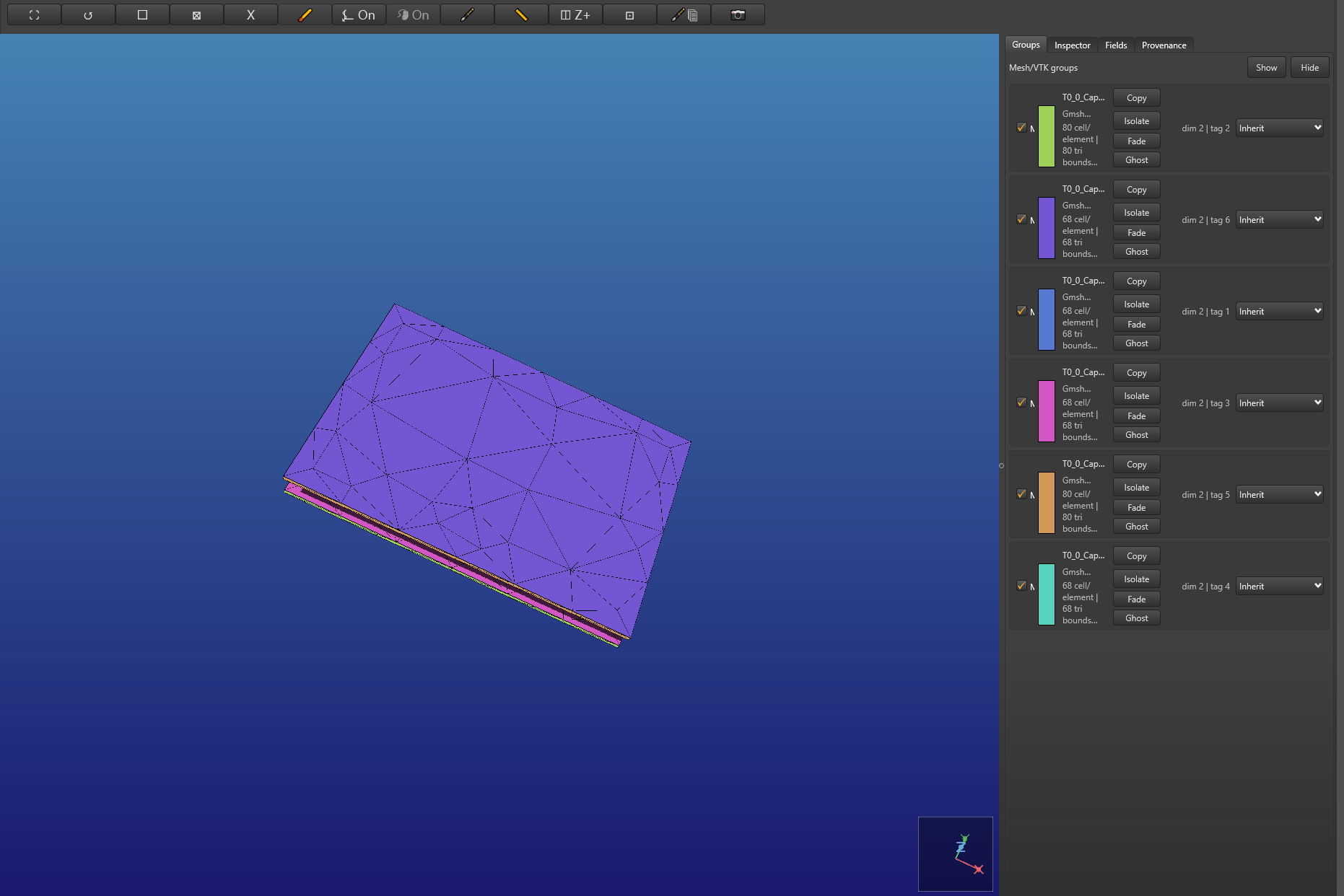
The two-plate capacitor’s saved 432-triangle mesh, displayed in InductEx® Studio.
Extracting capacitance from a two-plate model.
This example connects a simple physical model to its capacitance output. You’ll inspect the geometry and process inputs, view a saved 432-triangle mesh in Studio and read the corresponding electrical result.
Files and software
The example was prepared for InductEx® 8 Beta and Studio. The ZIP includes the inputs, mesh and a clean reference output from bundled TetraHenry® 1.1.50.
The walkthrough uses saved command-line results. Running a new extraction is an optional step described at the end.
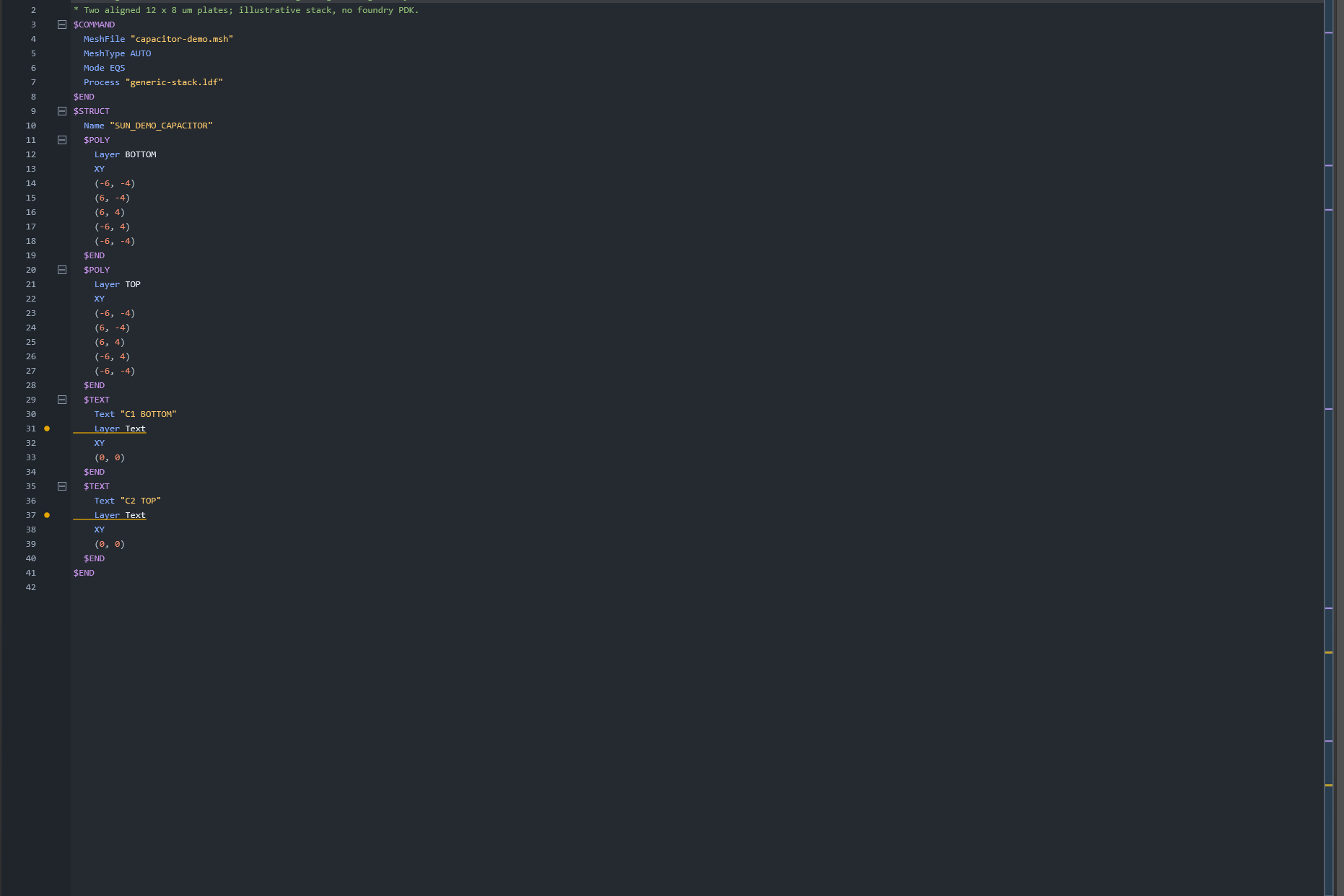
The IXI source defines the capacitor geometry and refers to the generic process file by a relative path.
1. Check the geometry against the process definition.
The geometry and process definition describe different parts of the same model. Check their labels and dimensions together so you can relate the physical stack to the conductor shapes.
-
Extract the complete ZIP into a writable folder. Keep capacitor-demo.ixi, generic-stack.ldf and the saved mesh together.
-
In Studio, choose File → Open and select capacitor-demo.ixi. Inspect Raw IXI and its relative Process reference.
-
Open generic-stack.ldf and identify the two aligned 12 × 8 µm plates and the 0.2 / 0.8 / 0.2 µm conductor–spacer–conductor stack.
These generic parameters are provided to illustrate the workflow.
The saved capacitor mesh in Studio, with 432 triangular surface elements.
2. Inspect the saved mesh in Studio.
Compare the mesh with the source before reading the electrical result. This lets you check which surfaces belong to each conductor and how the model has been discretised.
-
Choose File → Open and select capacitor-demo.msh.
-
Use fit-all to view the complete model, then rotate and zoom to inspect it.
-
Use Groups to inspect the named conductor surfaces and sides.
The supplied Gmsh 2.2 ASCII file contains 432 triangular surface elements from the public 8 Beta command-line extraction with TetraHenry® 1.1.50. Opening this saved file does not run another extraction or determine your extraction licence entitlement.
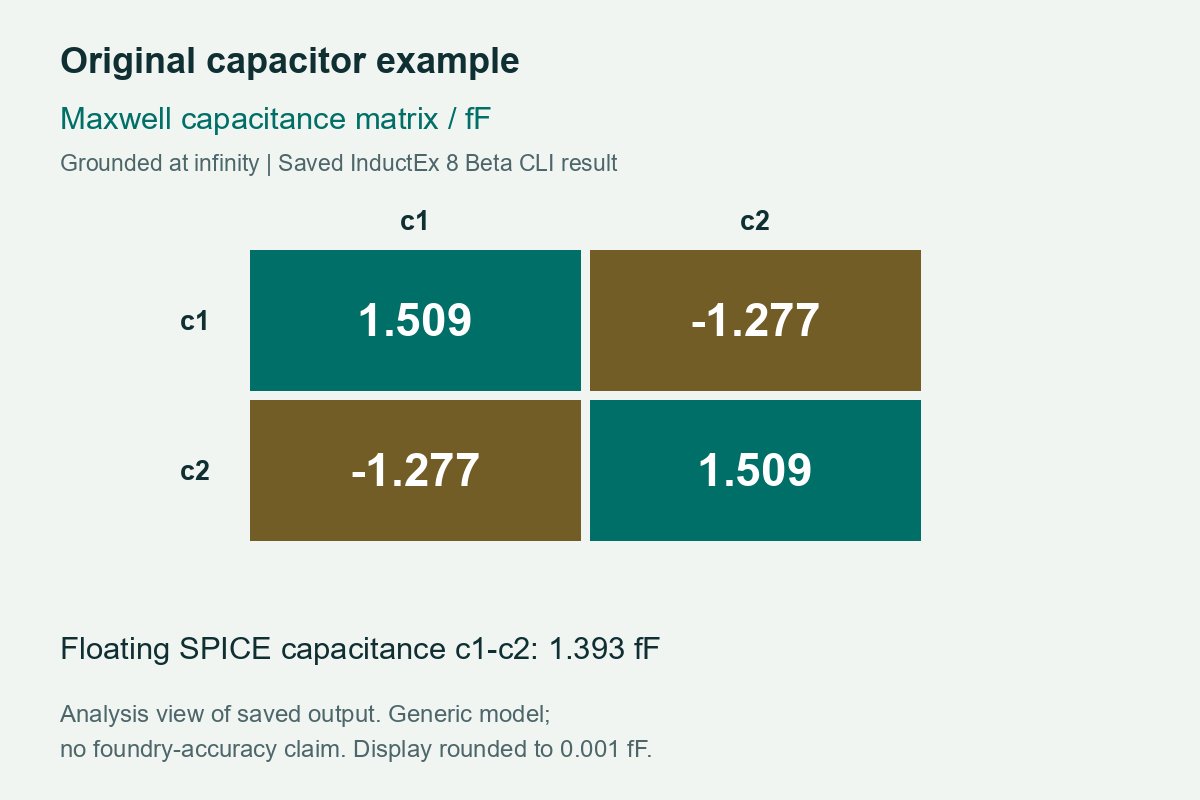
The saved Maxwell matrix in fF and the separately derived floating capacitance. This analysis figure presents the output data alongside the GUI views.
3. Interpret the capacitance matrix.
Open reference-capacitance.txt from the archive. The native charge output is expressed in farads; multiply by 10¹⁵ to read the values in femtofarads.
Rounded Maxwell matrix
C11 = C22 = 1.509 fF
C12 = C21 = −1.277 fF
Ground reference: infinity
The negative off-diagonal entries follow the Maxwell-matrix convention.
Floating SPICE capacitor
The separately derived floating-capacitor value is 1.393 fF.
These values belong to this model and mesh. A single mesh does not establish convergence or foundry accuracy.
4. Run a new extraction.
To run the model again, copy the inputs to a separate folder and use the matching licensed 8 Beta installation with its solver configured. Keeping the new output separate lets you compare it with the supplied reference.
Command-line extraction
inductex capacitor-demo.ixi
If the setup needs attention
If the process file cannot be found, check that the full archive was extracted and the relative LDF name was preserved. If the mesh is not visible, use fit-all and check Groups.
For licence, daemon or solver-path problems, follow the manual and contact support before changing the model.
The Studio images in this guide show inspection of saved results; they do not depict a new extraction running in Studio.